Complex Content Upload Flow
ADTECH · B2B SAAS · PRODUCT DESIGN
Making bulk video uploads clear, efficient and scalable. Uploading videos is one of the platform’s core workflows, but the existing experience was difficult to understand - especially when uploading multiple videos. I redesigned the complete flow to give users a clear overview of every video, support bulk configuration, upload and view of horizontal and vertical videos, communicate errors and validation, and separate video setup from background processing.
Role
Interaction Logic, Workflow Optimization, UX UI design, dev handoff and design QA
Collaboration
Product Manager, Front-end & Back-end Engineering, QA
Target users
Content Creators, Editors, Publisher Representatives
Status
Fully Shipped in Truvid Platform
April - August 2025

The challenge
Uploading content is one of the platform's core capabilities and a critical part of the user journey.
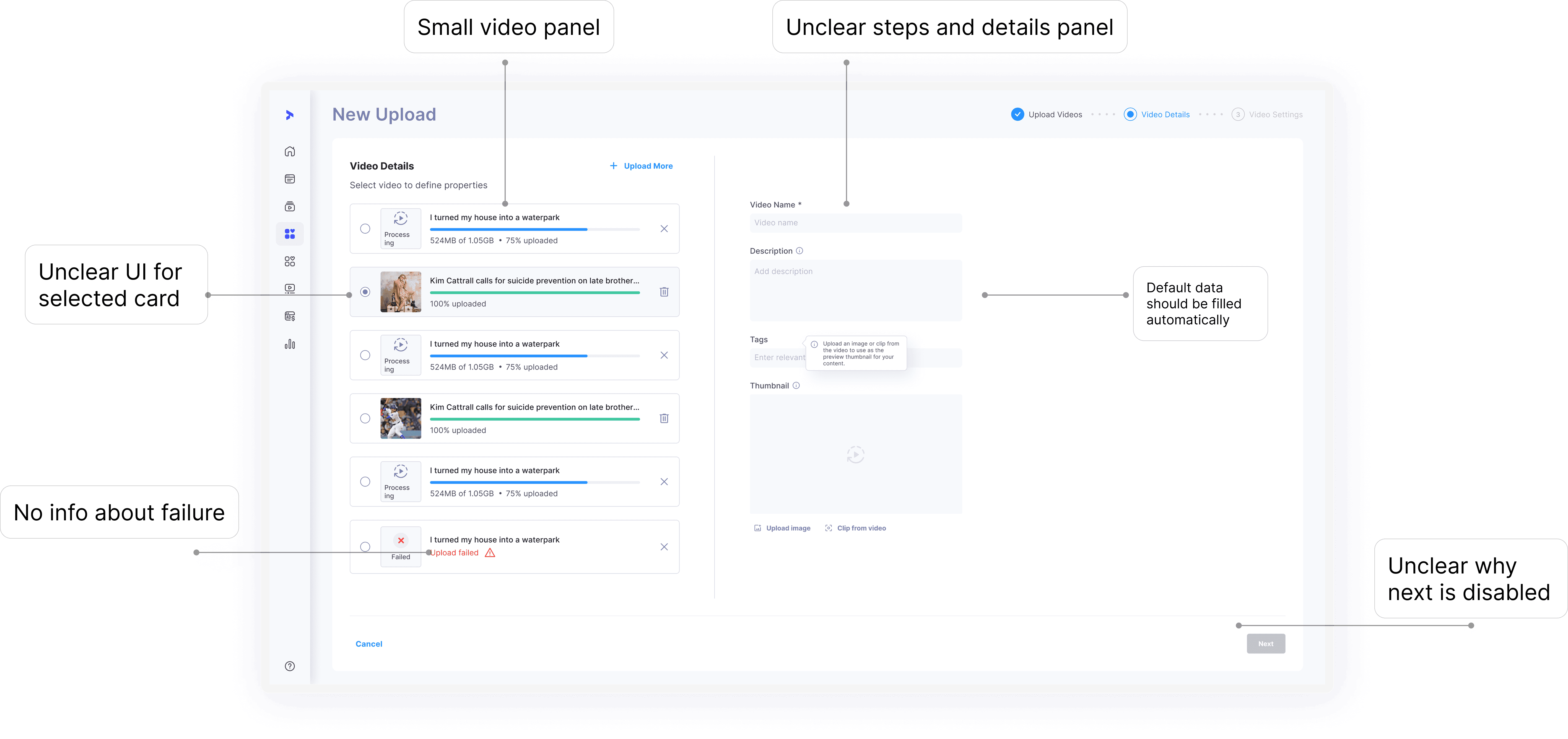
The existing upload flow allowed users to upload multiple videos in a single session, but each video had to be configured individually.
Users
Content Creators
Publisher Representatives
Pain Points
Manual and Time-Consuming Process
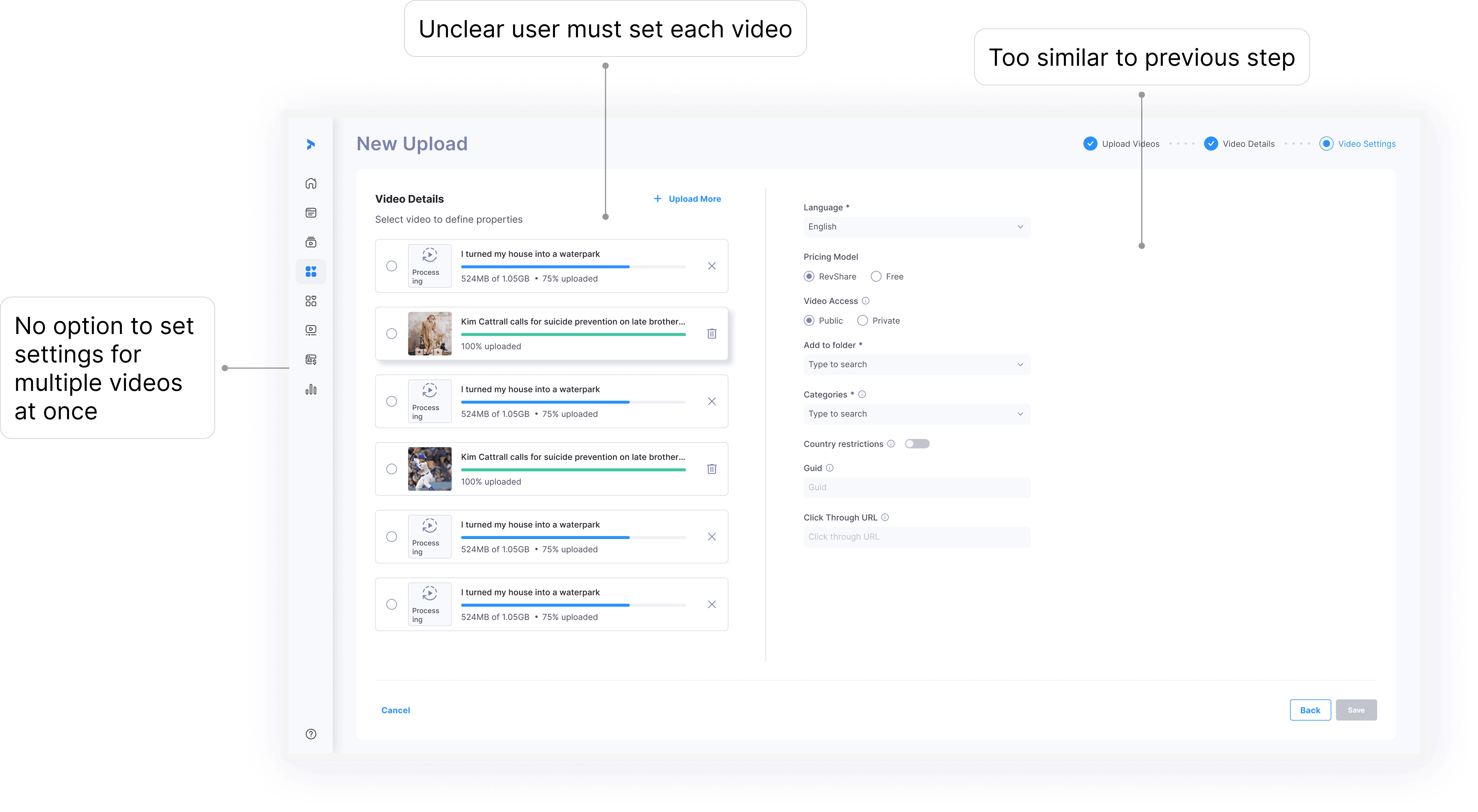
Each video had to be configured separately.
There was no option to bulk edit selected videos, resulting in repetitive manual work.
Lack of Status Visibility
Users had no clear indication of:Which videos had completed configuration.
Missing mandatory fields or validation errors.
Failed uploads and the reasons for failure.
Confusing Upload Behavior
Video upload and server-side processing continued in the background even after users completed the setup flow, creating uncertainty about the upload status.
Unclear UI
Radio buttons next to each card suggested that only one video could be selected.
The narrow panel layout left most of the workspace unused.
Old design:
The design goal
The redesigned flow needed to work equally well for one video or a batch of dozens.
I defined four principles for the new experience:
Support uploading multiple videos with different configuration requirements in a single flow.
Enable bulk editing for selected videos instead of applying changes to all uploaded videos.
Provide clear guidance for required fields and validation errors.
Display the upload and configuration status of each video throughout the process.
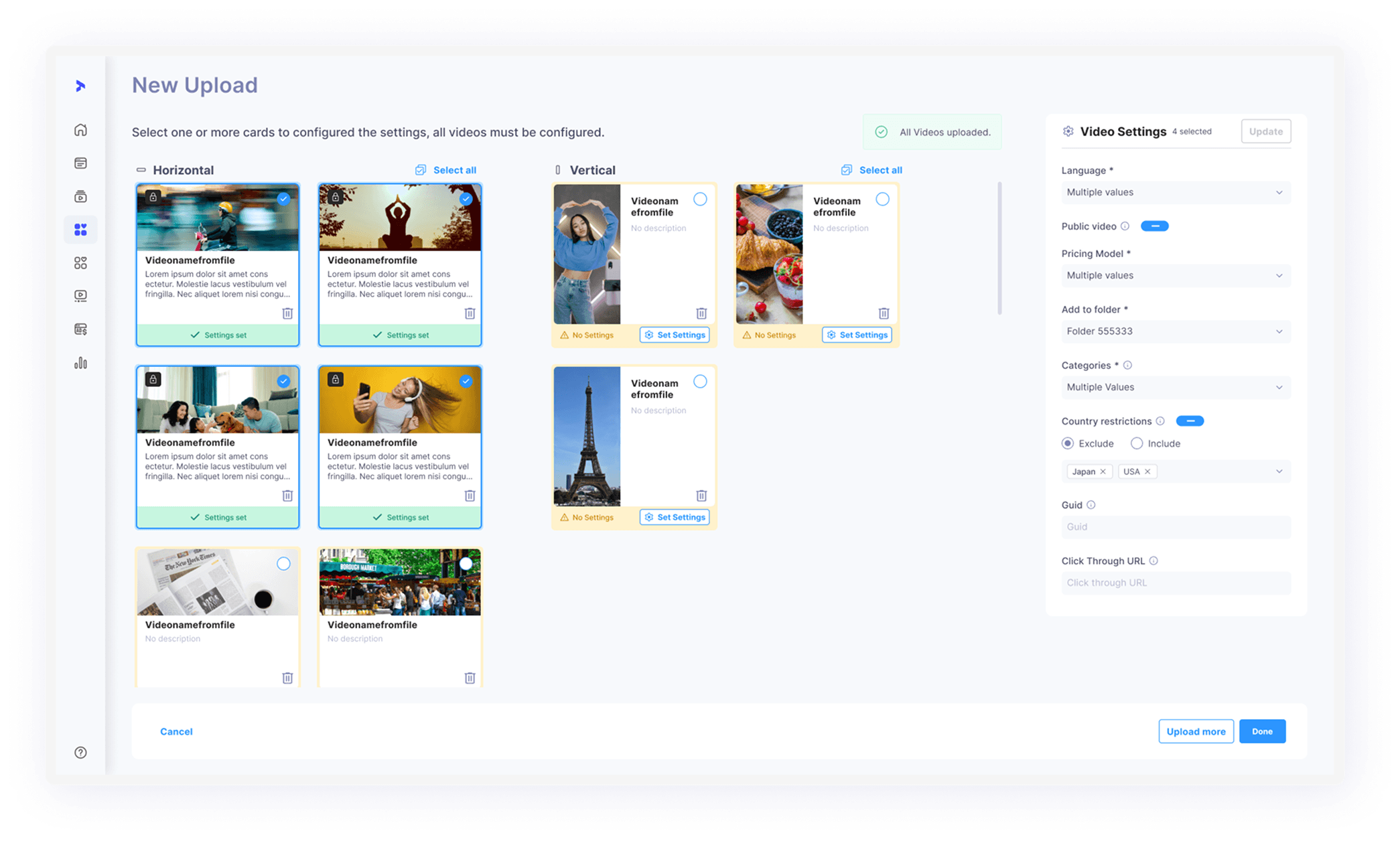
1. Turning the upload flow into a scalable workspace
The previous design focused on one video inside a side panel. This made the experience feel like a single-selection task and provided little visibility into the rest of the batch.
I replaced it with a responsive card grid that uses the available screen space.
All horizontal and vertical videos appear together in the same workspace. The grid adapts to the available width, including when the settings panel opens, so users can maintain an overview while editing.
This allows the same interface to support a single upload and a much larger batch without switching between separate modes.

From editing one video at a time to managing the complete upload in one workspace.
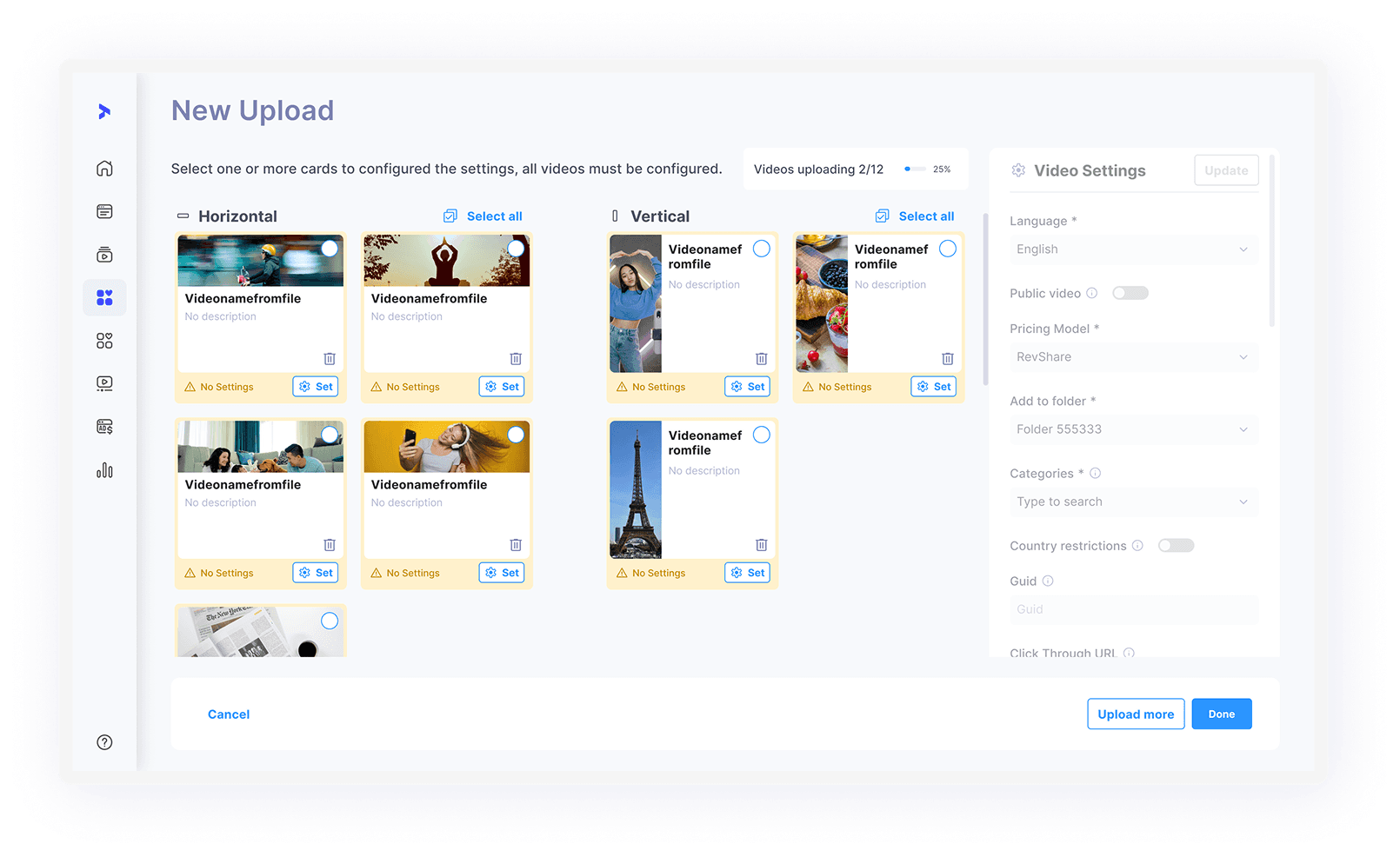
Responsive behaviour
2. Making the upload status of every video visible
In the old flow, users had to remember which videos they had already configured. There was no clear indication of what was ready and what still required attention.
I introduced visible states at the card level.
Each card communicates whether the video:
Was uploaded successfully.
Is missing required settings.
Contains a validation error.
Failed to upload.
Cards with missing mandatory information receive a clear red validation state. The corresponding fields are also highlighted inside the settings panel, connecting the problem to the place where it can be resolved.
Failed cards display an error description rather than a generic failure message. When the user continues, failed videos are automatically skipped and valid videos can still be processed. Users do not need to manually remove failed cards before completing the batch.
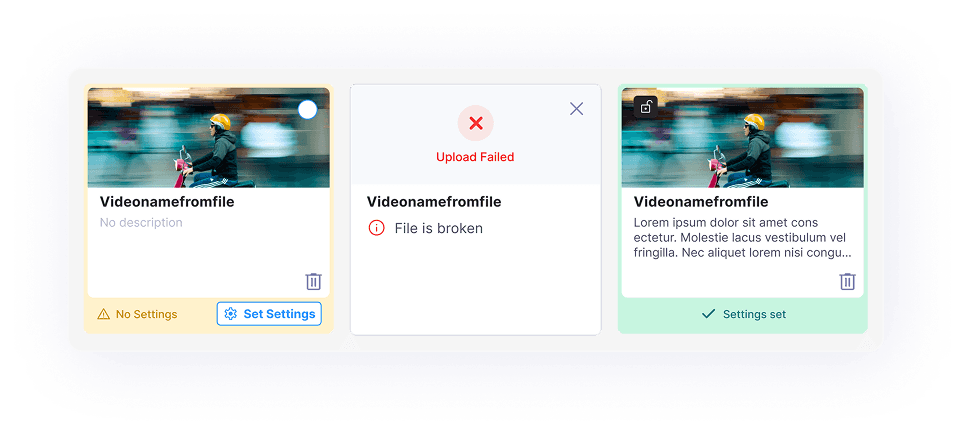
Users can understand the state of the entire batch without opening every video.
3. Clarifying title and description editing
The first step of the previous flow did not clearly communicate that users needed to review the title and description of every video.
In the redesigned experience, these details are part of the video card itself.
Users can click the edit action to update the title and description directly on the card. Clicking outside the editing area saves the changes automatically, reducing unnecessary confirmation actions.
When text is too long to display, hovering over the complete text area reveals the full value in a tooltip.
This makes editing feel like part of preparing each video rather than an unexplained step in a separate process.
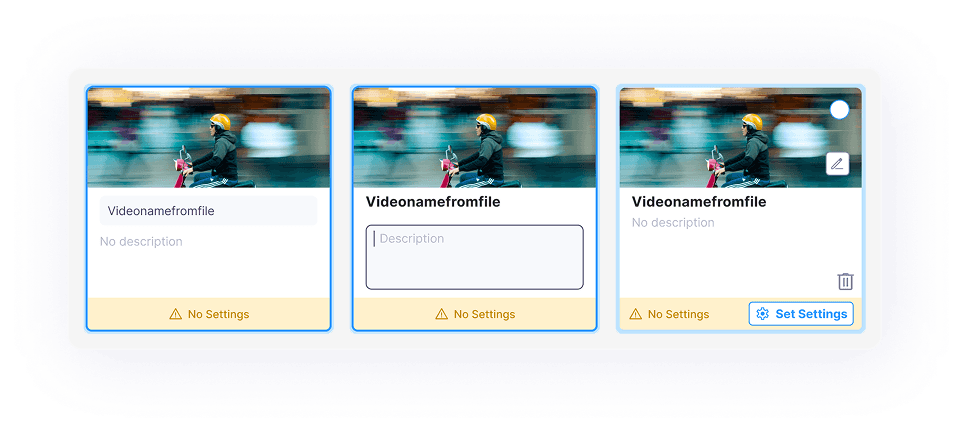
Titles and descriptions are edited in context, directly alongside each video.
4. Applying settings to multiple videos
The biggest efficiency problem was repetitive configuration. Most users wanted to apply the same settings to several videos, but the old flow required them to configure every item separately.
I replaced the radio-button behavior with clear multi-selection.
Users can select any combination of videos and configure them together through a shared settings panel. This makes it possible to apply the same settings to an entire batch while still supporting individual changes when necessary.
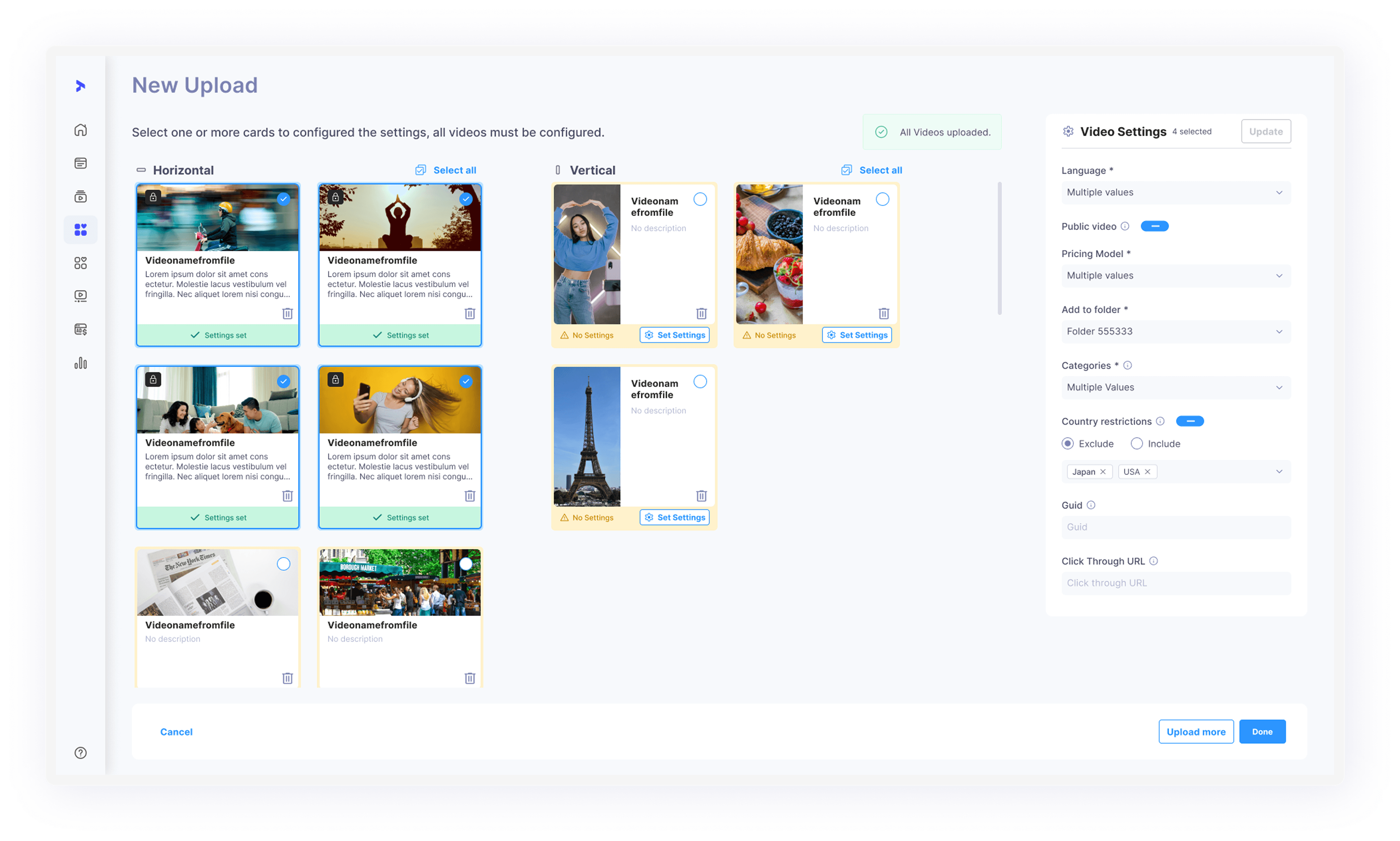
Handling different existing values safely
Bulk editing introduced an important challenge: selected videos may already contain different settings.
Instead of displaying one misleading value, the panel communicates when the selection contains mixed values:
Inputs display “Multiple values selected.”
Radio buttons and toggles use a neutral state.
Hovering over a neutral control explains that the selected videos contain different values.
Optional values remain unchanged unless the user explicitly edits them.
If the selection includes both configured and unconfigured videos, a banner warns:
Some videos have no settings configured.
When the user first interacts with a setting that could overwrite existing values, a confirmation appears before anything changes. Once confirmed, the user can continue editing and changes are saved automatically.
This provides the efficiency of bulk editing without silently destroying settings that were already configured.
Existing settings are only overwritten after an explicit user action.
5. Preventing users from completing an unfinished batch
Users can select any combination of videos, but the flow must prevent incomplete videos from being processed accidentally.
If users click Done while mandatory settings are missing:
Incomplete cards receive a visible validation border.
Required fields are highlighted in the settings panel.
Videos that are already configured keep their existing values.
Optional fields do not block completion.
This makes the error actionable: users can immediately identify both which videos require attention and which settings are missing.
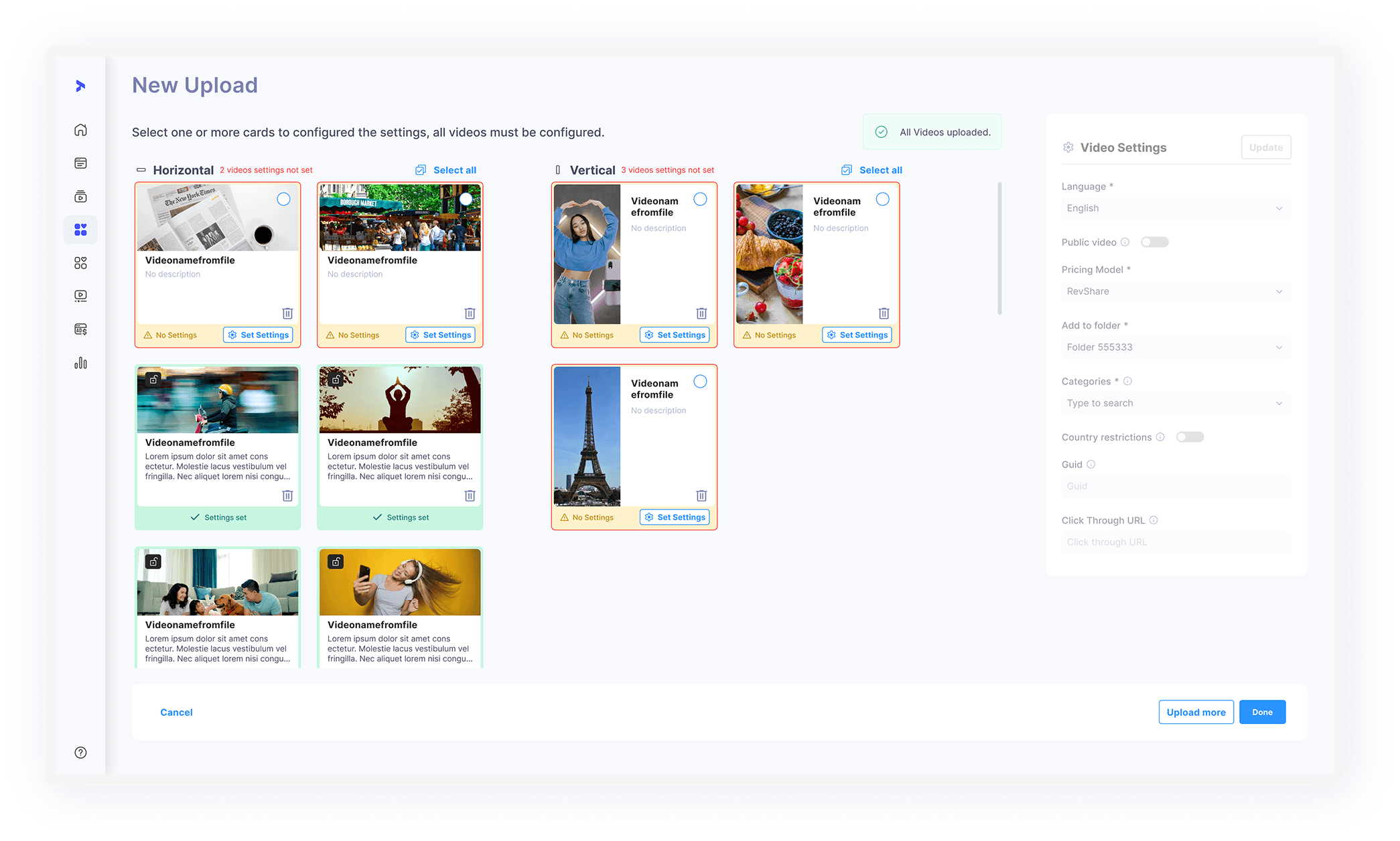
Validation appears both on the affected cards and inside the settings panel.
6. Separating video setup from background processing
Completing the video settings does not mean the videos are immediately available. They still need to upload and process on the server.
The old flow did not communicate this transition clearly, so users could leave without understanding what was happening.
I separated the experience into two distinct modes:
Focused setup
While users are adding and configuring videos, they remain inside a dedicated upload workspace. The global processing panel is hidden so it does not compete with the active task.
Background processing
Once the upload begins, users return to the video library and can continue working elsewhere. A global panel shows the status of the background upload and processing activity.
The panel remains visible while processing is active and closes automatically when all work is completed or dismissed. If another right-side editing drawer opens, it overlays the processing panel rather than resizing the active workflow.
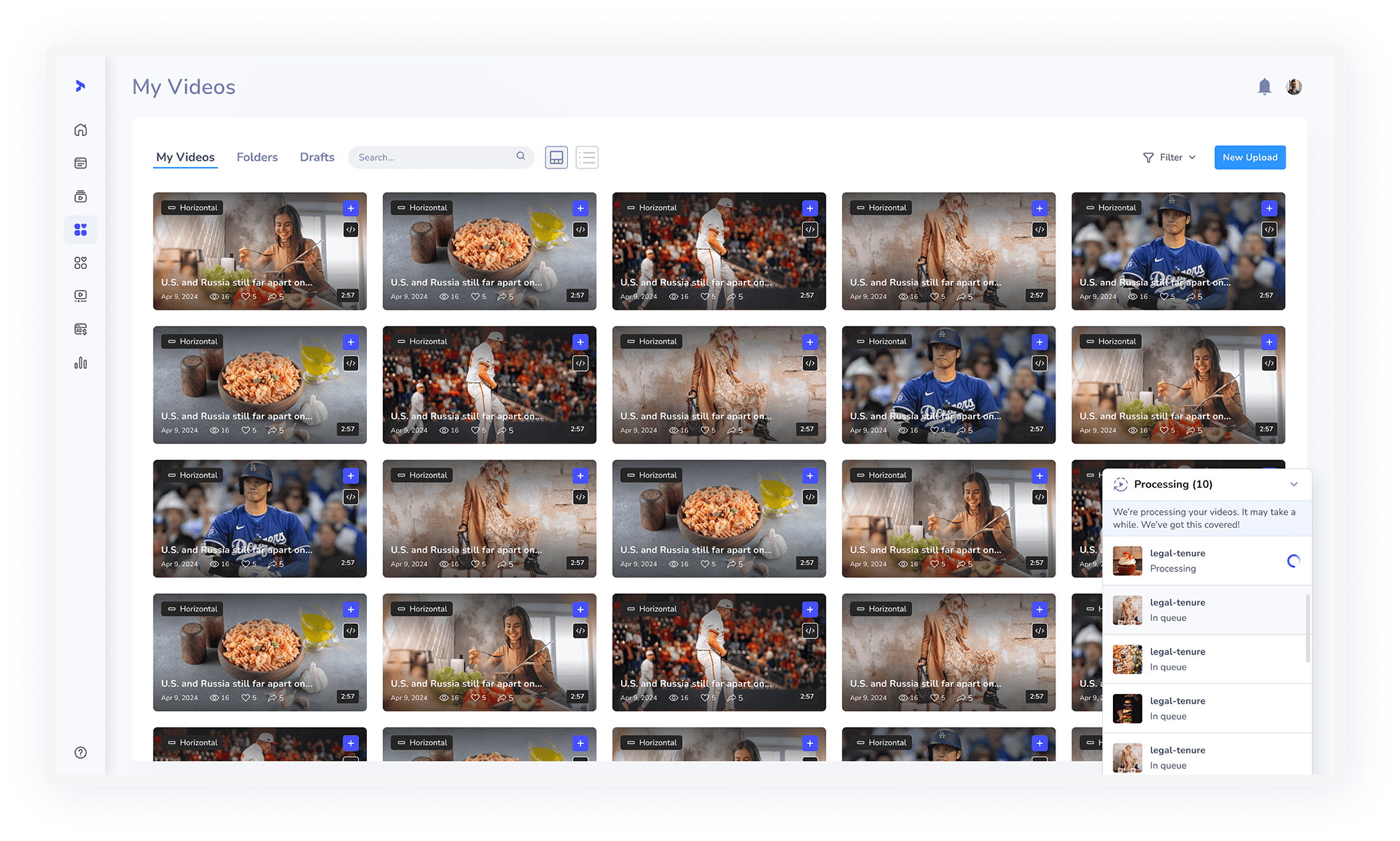
Finishing the setup starts a visible background process—the user does not need to remain inside the upload flow.
The final outcome
The redesigned experience transformed video upload from a sequence of disconnected single-item actions into one scalable workspace for managing an entire batch.
Users can now:
See all horizontal and vertical videos in one responsive grid.
Understand which videos are ready, incomplete or failed.
Edit titles and descriptions directly from each card.
Apply shared settings to multiple videos.
Understand and safely modify mixed settings.
Identify missing mandatory information before continuing.
Complete valid uploads without manually removing failed videos.
Save unfinished batches as drafts.
Continue working while upload and processing happen in the background.
Impact and next steps
The redesign addressed the main usability gaps in the existing upload experience and established a scalable interaction model for single and bulk uploads. It also defined the behavior for mixed settings, validation, upload failures, drafts and background processing - turning the feature into a more complete and predictable workflow.
To evaluate the redesign after release, I would measure:
Successful upload completion rate.
Time required to configure a multi-video batch.
Number of uploads abandoned before completion.
Frequency of missing-settings validation.
Recovery rate after upload failure.
Upload-related support requests.
Reflection
The main lesson from this project was that a bulk workflow cannot be designed as a single-item workflow repeated multiple times.
Users need visibility across the entire batch, efficient shared actions and safeguards for items that behave differently. Designing the states, validation and background behavior alongside the main screens helped turn a confusing upload form into a coherent system.
